Palo Alto Prisma Virtual ION - Create
To create a Palo Alto Prisma Virtual ION, follow the guided steps in the Evolution Platform create flow. The main choices are the virtual device identity and sizing, the image and flavor, optional disk size changes, interface options, and service credentials required to register the device with Prisma.
Step 1 - Select project
Select the project in which you want to deploy your virtual Edge:
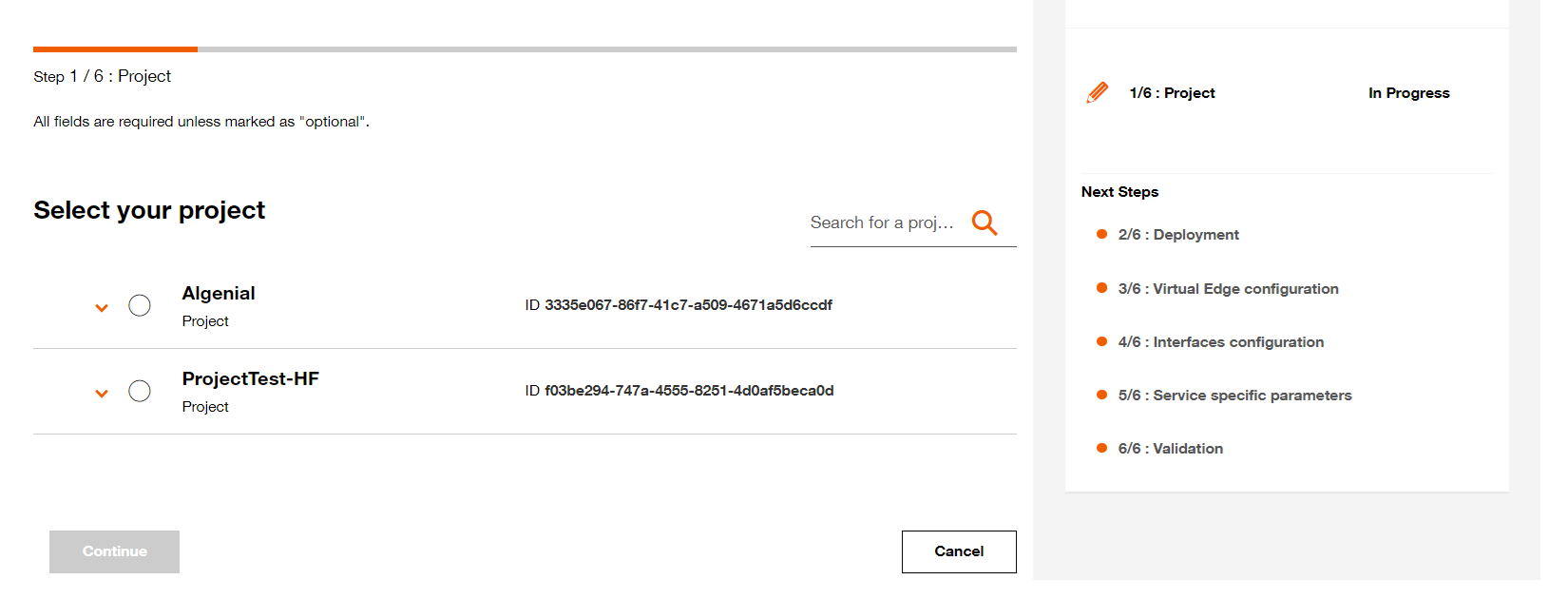
Select your project.
Step 2 - Deployment configuration
2.1 Name your Virtual Edge (This name will be displayed on the Virtual Network Edge dashboard)
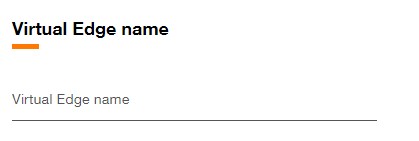
Set Virtual Edge name.
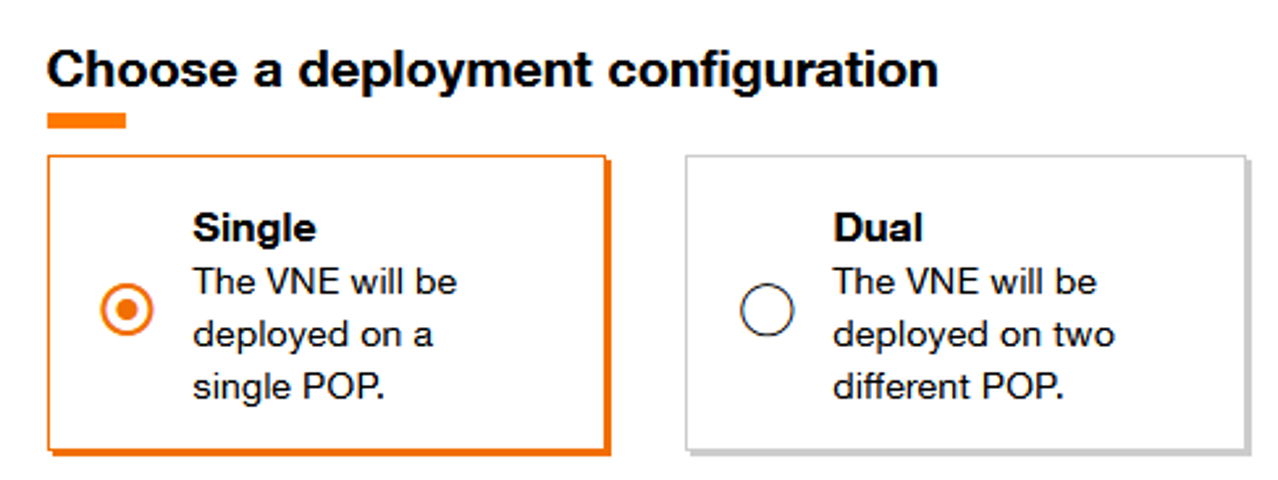
Select implementation mode.
Virtual device configuration
2.3 Fill the Virtual Device name (This name will be used as hostname for the virtual device).
2.4 Select the Orange POP which correspond to the location of POP.
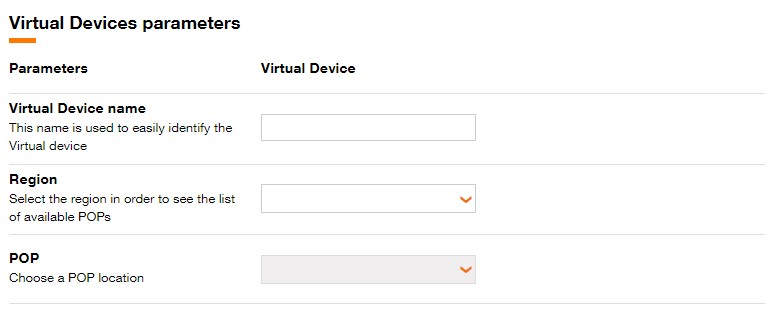
Fill Virtual Device Name, Region and POP.
For Dual topology, different POP can be chosen for each virtual Device.
For Cluster topology, the Virtual devices must be on the same POP.
Select Internet and MPLS Bandwidth for each Virtual Device.

Select Internet and MPLS bandwidth for the Virtual Device.
Step 3 - Virtual Edge configuration
3.1 Select the Software version.
Available software versions are :
- 6.2.1-b3
3.2 Select the Virtual Device flavor.
Available flavors are :
| Standard | DPDK | |
|---|---|---|
| Small | 2 vCPU 8 GB Mem 64 GB Disk | - |
| Large | 8 vCPU 32 GB Mem 64 GB Disk | 8 vCPU 32 GB Mem 64 GB Disk |
- For Dual topology, different flavors can be selected for each Virtual device.
- DPDK (Data Plane Development Kit) is a set of libraries and drivers designed to acceler- ate packet processing and optimize performance in network applications. It provides a high-performance framework for managing network traffic at a low level, bypassing the traditional kernel network stack to enhance throughput and reduce latency.
Pay attention the use of an image with DPDK significantly increases energy consumption and therefore the associated carbon footprint.
3.3 Click on Continue button to continue the journey or click on Save button to save the current deployment configuration.
Step 4 - Interfaces configuration
Interfaces (summary)
The creation form preserves the numbered interface names used throughout documentation. Key points:
- #1 - Internet Interface - management — platform-allocated Public IP address for management. No customer IP input is required; this address is shown as a provisioning output.
- #2 - Internet Interface - access — platform-allocated Public IP address for SD‑WAN access. You may request additional public IPs with Added IP address number; enter an integer between 1 and 8 to request extra addresses beyond the default.
- #3 - MPLS-VPN interface (optional) — trunk interface using VLAN sub-interfaces (IDs in the 101–148 range). Configure VLANs and add one or more VPN entries per VLAN when required.
For VLAN entries on #3 you can provide a VPN Name (pattern: alphanumeric, dash, underscore) and select a VPN role (any-to-any, client, server). BGP can be enabled per VLAN and, when enabled, associated BGP fields will be presented.
Step 5 — Service specific parameters
During provisioning you must provide service-level credentials and optional BGP identity:
- VM name — hostname for the VM (follow the create flow pattern and length limits).
- VM image — choose one of the supported Prisma Virtual ION images in the UI.
- VM flavor — select the VM size (flavors available depend on image selection).
- Disk size — optional boot volume size (choose within allowed range).
- VM AS number — provide this only if you plan to enable BGP.
- Prisma SDWAN key — required credential used by cloud-init to register the device with the Prisma orchestrator.
- Prisma SDWAN secret — required credential paired with the key for orchestrator authentication.
After completing required fields, use Continue to proceed or Save to keep the current configuration draft.
Step 6 - Validation
After clicking the Continue button, a page summarizing the characteristics of the Virtual Edge will be displayed.
This page is divided into several sections :
- Projects
- Deployment
- Virtual edge configuration
- Interfaces configuration
- Service specific parameters
At this stage, it is still possible to modify the characteristics for these sections.
One section is dedicated to display the Carbon footprint of the Virtual Edge :
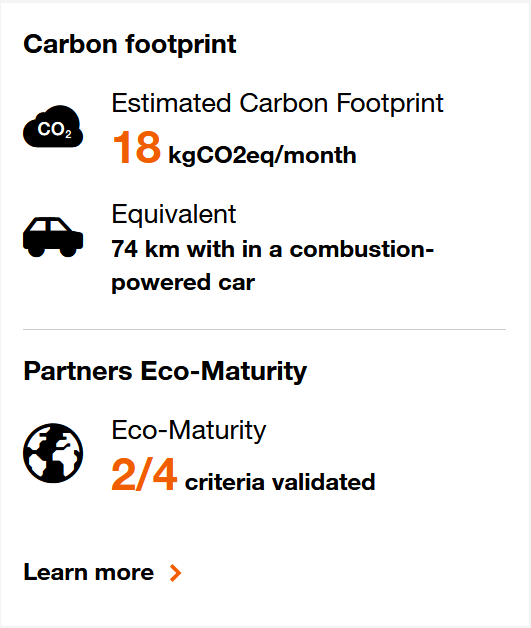
Carbon footprint for Virtual Edge.
Click on the Provision button to initiate the provisioning of the Virtual Network Edge.
You can also preserve the Virtual Network Edge configuration by clicking the Save and close button and the following toast is displayed.
In this case, you will find the Virtual Network Edge in designed state on the .
