Netskope publisher - Create
To create a Netskope publisher, follow the steps below in the order:
Step 1 - Select project
Select the project in which you want to deploy your virtual Edge:
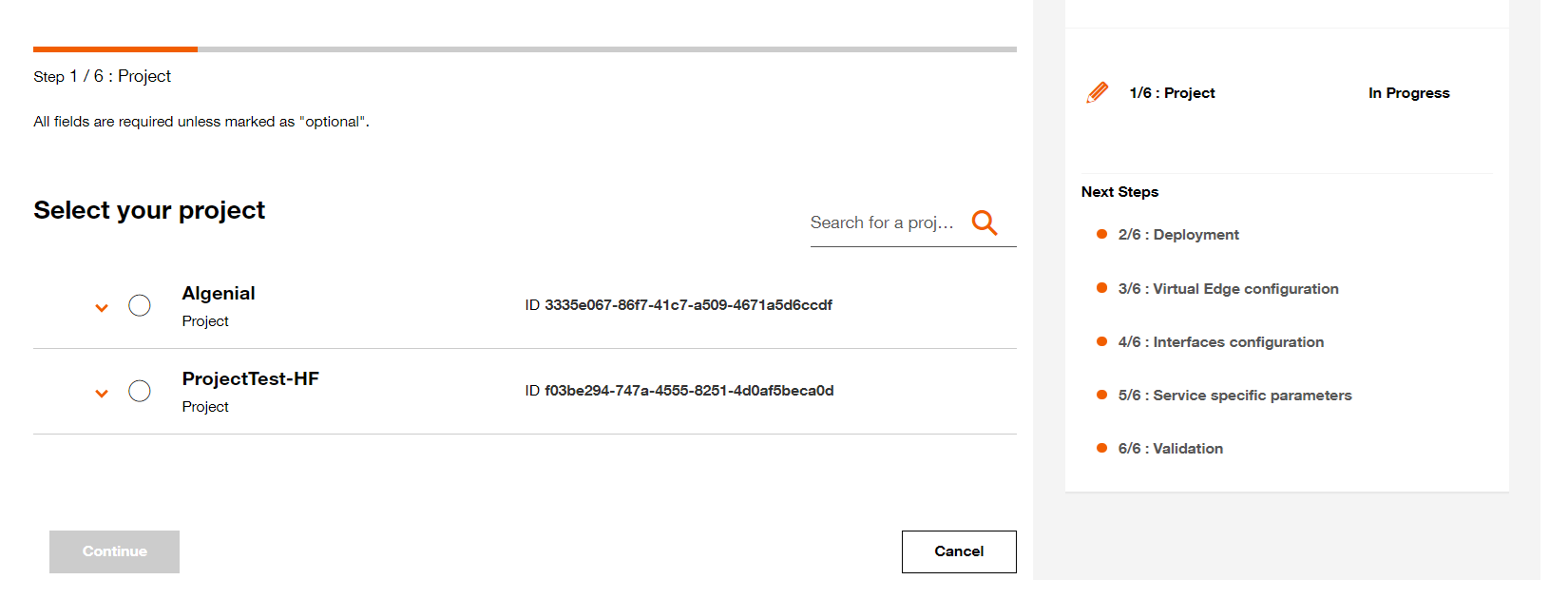
Select your project.
Step 2 - Deployment configuration
2.1 Name your Virtual Edge (This name will be displayed on the Virtual Network Edge dashboard)
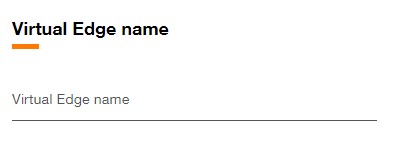
Set Virtual Edge name.
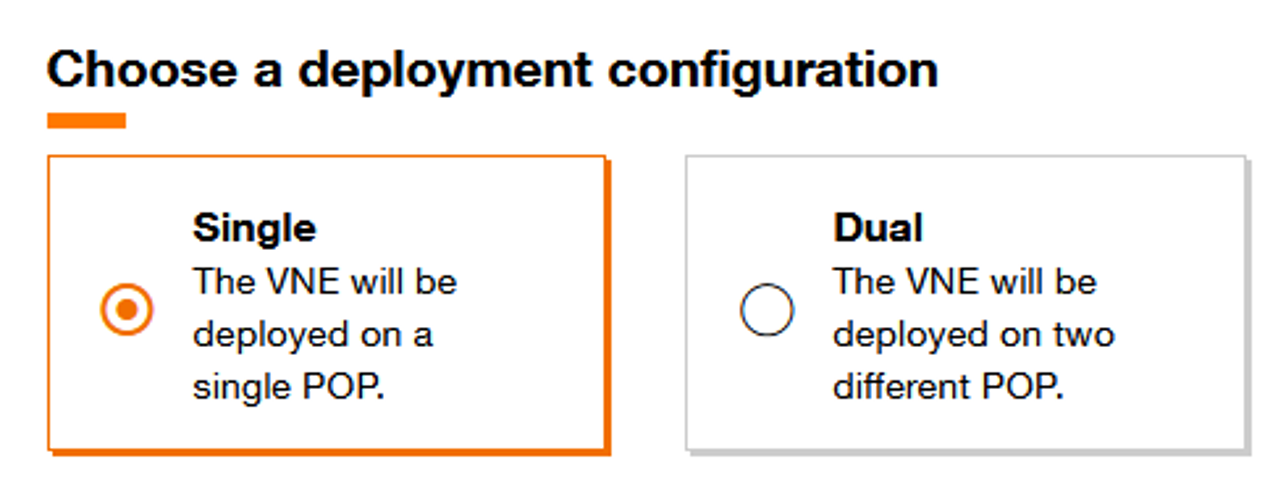
Select implementation mode.
Virtual device configuration
2.3 Fill the Virtual Device name (This name will be used as hostname for the virtual device).
2.4 Select the Orange POP which correspond to the location of POP.
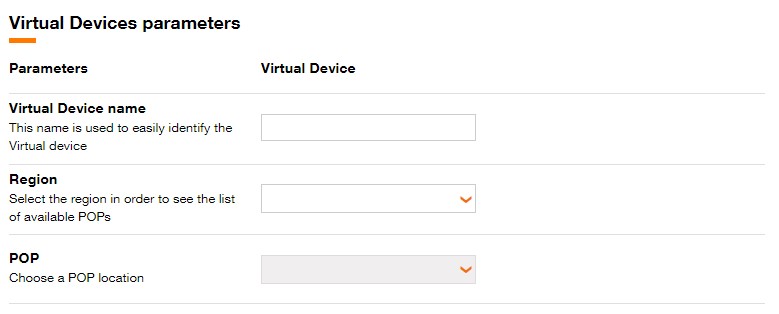
Fill Virtual Device Name, Region and POP.
For Dual topology, different POP can be chosen for each virtual Device.
For Cluster topology, the Virtual devices must be on the same POP.
Select Internet and MPLS Bandwidth for each Virtual Device.

Select Internet and MPLS bandwidth for the Virtual Device.
Step 3 - Virtual Edge configuration
3.1 Select the Software version.
Available software versions are :
- 22.04.5
3.2 Select the Virtual Device flavor.
Available flavors are :
| Standard | |
|---|---|
| Medium | 4 vCPU 8 GB Mem 64 GB Disk |
| Large | 8 vCPU 16 GB Mem 64 GB Disk |
- For Dual topology, different flavors can be selected for each Virtual device.
- DPDK (Data Plane Development Kit) is a set of libraries and drivers designed to acceler- ate packet processing and optimize performance in network applications. It provides a high-performance framework for managing network traffic at a low level, bypassing the traditional kernel network stack to enhance throughput and reduce latency.
Pay attention the use of an image with DPDK significantly increases energy consumption and therefore the associated carbon footprint.
3.3 Click on Continue button to continue the journey or click on Save button to save the current deployment configuration.
Step 4 - Interfaces configuration
Interfaces
The interface configurations are specific for this virtual device:
- Interface 1 : Internet Interface with a public IP address (ipAddressV4).
- Interface 2 : MPLS-VPN interface which used to connect to Orange MPLS VPN through VLAN sub-interfaces.
Virtual device configuration
Upload your cloud-init in *.ini format by selecting your file
Cloud-init is automatically generated by the platform for this VNF. Custom user data upload is not allowed.
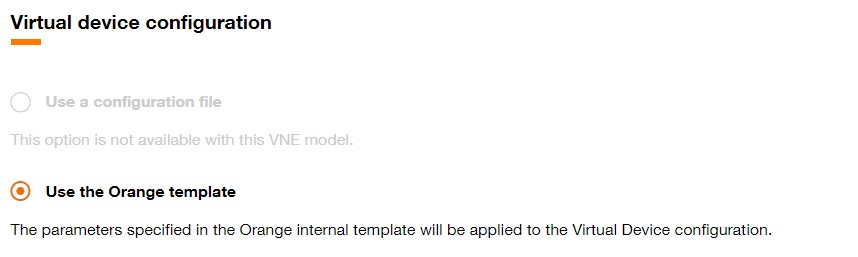
Virtual device configuration.
Step 5 - Service specific parameters
5.1 Fill in the following service parameters:
- VM AS number (2 or 4 bytes)
- Registration token generated
- Username
- User password
- Root password
5.2 Click on Continue button to continue the journey or click on Save button to save the current deployment configuration.
Step 6 - Validation
After clicking the Continue button, a page summarizing the characteristics of the Virtual Edge will be displayed.
This page is divided into several sections :
- Projects
- Deployment
- Virtual edge configuration
- Interfaces configuration
- Service specific parameters
At this stage, it is still possible to modify the characteristics for these sections.
One section is dedicated to display the Carbon footprint of the Virtual Edge :
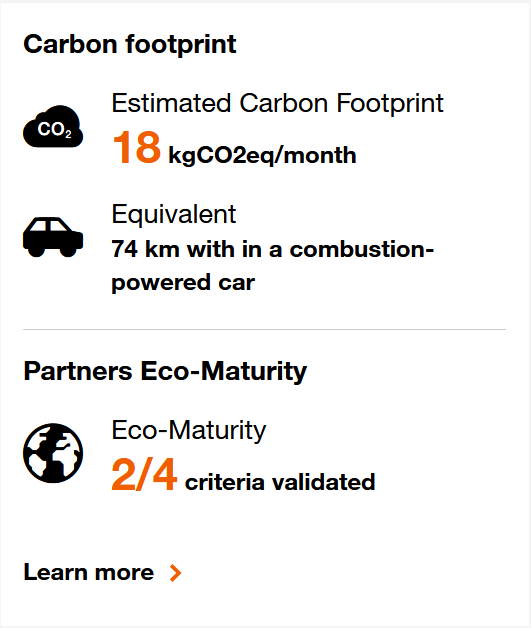
Carbon footprint for Virtual Edge.
Click on the Provision button to initiate the provisioning of the Virtual Network Edge.
You can also preserve the Virtual Network Edge configuration by clicking the Save and close button and the following toast is displayed.
In this case, you will find the Virtual Network Edge in designed state on the .
