Products & Services catalog
Overview
The Products & Services catalog lists available service families, services inside each family, and quick navigation options so you can discover, view, and subscribe to services offered on the platform.
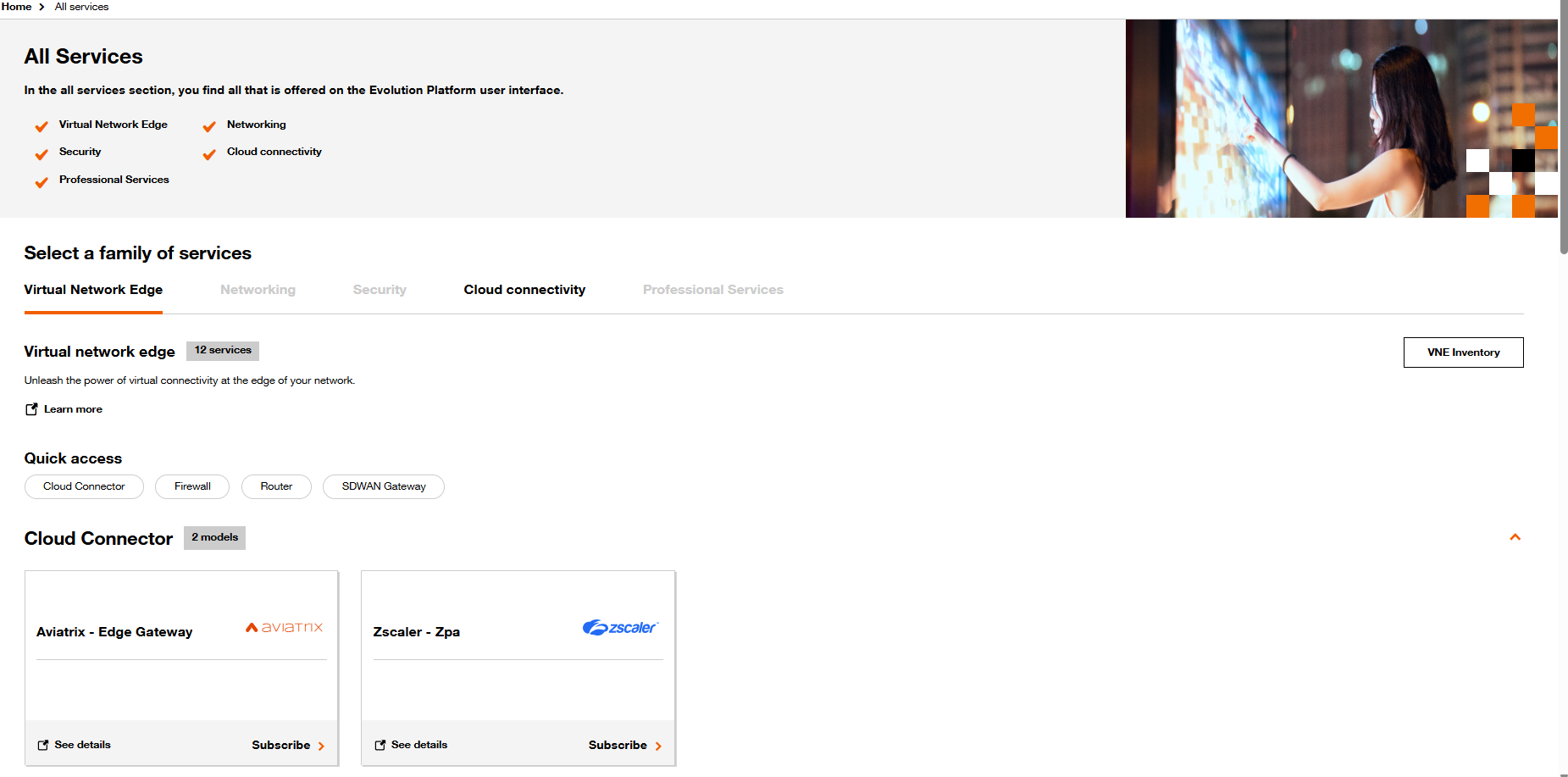
Top-level layout
- Page title and short description: explains what the catalog contains.
- Service highlights (icons/list): quick visual list of major service categories (Virtual Network Edge, Networking, Cloud connectivity).
- Main content area is organized by service family tabs, quick-access shortcuts, and service model cards.
Main sections and controls
Service family tabs
- Purpose: select the family/category of services you want to explore.
- How to use: click the tab label to switch families; the active tab shows its family details and available models.
Family header (e.g., "Virtual network edge")
- Shows family name and a small badge with the number of services/models in that family (example: "12 services").
- Short family summary text describes the family purpose.
- "Learn more" link: opens additional documentation : https://documentation.evolutionplatform.orange-business.com/
- Family-specific action button (example: "VNE Inventory"): opens the inventory or list view for that family
Quick access shortcuts
- Shown as pill buttons (example: Cloud Connector, Firewall, Router, SDWAN Gateway).
- Purpose: fast filters/shortcuts to commonly-used subcategories or specific model sets within the family.
- How to use: click a pill to filter the displayed models to that subcategory.
Model count and grouping (e.g., "Cloud Connector — 2 models")
- Each sub-section or capability group within the family lists the number of models available.
- This heading precedes the model cards for that sub-section.
Service model cards
- Each model is represented by a card containing:
- Model name and vendor (example: Aviatrix - Edge Gateway, Zscaler - Zpa).
- Vendor logo.
- Action area with two primary actions:
- "See details": opens either the documentation page or a side panel to view descriptions and configuration options.
- "Subscribe": starts the subscription and provisioning workflow for that model.
- How to use:
- Click "See details" to review supported regions, prerequisites, SLA, documentation, and parameters you will need.
- Click "Subscribe" to start ordering/provisioning.
Inventory button
- Click the family-specific inventory button (e.g., "VNE Inventory") to open the family inventory — lists instances already deployed or designed
Common tasks and workflows
1. Browse a service family
- Click the family tab (e.g., Virtual Network Edge).
2. Filter to a subcategory quickly
- Use Quick access pill buttons (e.g., Firewall or Cloud Connector) to limit shown models to that subcategory.
3. Inspect a service/model
- Click the model card’s "See details" to view full documentation, technical specs, supported locations, and prerequisites.
4. Subscribe to a model
- After reviewing details, click "Subscribe" on a model card.
- Follow the subscription journey to provide required parameters, choose deployment options, and confirm provisioning.
5. View inventory related to a family
- Click the family-specific inventory button (e.g., "VNE Inventory") to open the family inventory — lists instances already subscribed or deployed.
Interpreting counts and labels
- Family badge (e.g., "12 services") shows how many services/models are available in that family.
- Subsection badges (e.g., "2 models") show how many models exist in that capability group.
- Counts update to reflect catalog contents and might be scoped by permissions — you may see fewer items if you lack access.
Tips & best practices
- Start with "See details" before subscribing to check prerequisites
- Use Quick access to reduce the list to the most relevant models and speed discovery.
- If you plan to deploy widely, check whether the model supports the regions and cloud providers you need.
Troubleshooting & common questions
I don’t see a model I expect
- Ensure you’re in the correct family tab.
- Check quick-access filters are not active.
- Verify your role and permissions; some models may be hidden by RBAC.
- Ask your Orange Business Representative
Counts or content seem out of date
- Refresh the page.
- If stale data persists, check platform status or contact platform support.
FAQ (short)
- Q: Where does "See details" lead? A: To a model detail page that lists technical specs, prerequisites, configuration parameters, and documentation.
- Q: What’s the difference between "Subscribe" and "See details"? A: "See details" is informational. "Subscribe" starts the ordering/provisioning workflow to create a deployed instance.
- Q: How do I find an already deployed instance? A: Use the family inventory button (e.g., "VNE Inventory") or go to the platform’s overall inventory/dashboard.