Global Inventory
Overview
The Global Inventory page lists all resources registered in the Evolution platform and provides quick access to status, resource main data, and actions (export, refresh, view details). Use this page to monitor inventory at a glance, check operational/provisioning status, and export the list.
Accessing Global inventory
- From the Assets menu, select Global inventory
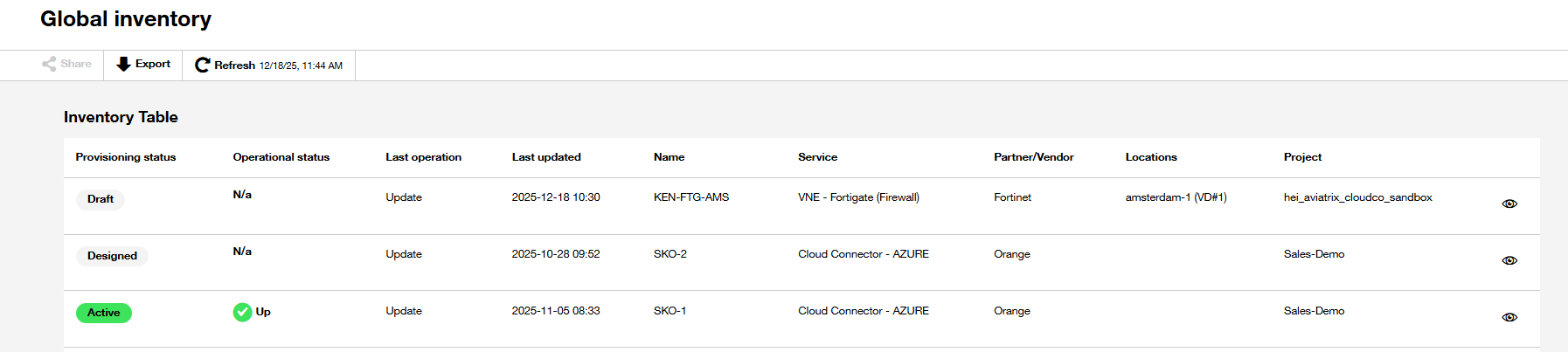
Page layout and top controls
- Top-left controls:
- Export — download the inventory list (common formats: CSV/Excel)
- Refresh — refresh the list; the timestamp beside it shows last refresh time (e.g., "12/18/25, 10:42 AM").
- Main area: "Inventory Table" containing rows of inventory entries and columns (see below).
Inventory table — columns and meaning
From left to right the table shows:
Provisioning status
- Visual badge (examples: "Designed" in gray; "Active" in green).
- indicates lifecycle/provisioning state of the inventory item (e.g., Designed, Active).
Operational status
- Text and icon (examples "Up" with a green check icon).
- Indicate current runtime/operational health ( e.g. Up = running, N/a = not applicable).
- Use to identify items that need attention (eg. Down status).
Last operation
- Text showing the most recent operation performed (e.g., "Update").
- Use this to understand what action was most recently executed on the item.
Last updated
- Timestamp when the resource item was last updated (date + time format). i.e when the latest operation has been performed
- Use to verify recency of the status.
Name
- The resource name
Service
- Indicates the service type for the item (example: "Cloud Connector - AZURE").
Partner/Vendor
- The vendor or partner associated with the item (example: Orange).
Locations
- Show geographic location of the resource, ex for Virtual Edge the location of the virtual devices in the Orange super PoP
Project
- Shows the project in which the resource has been instantiated
Actions column (right-most)
- Eye icon per row — likely “view details” or “open item” action.

- Click this icon to open the inventory item details panel
Common actions and workflows
Refresh inventory list
- Click Refresh at the top of the page to reload the inventory.
- Check the timestamp beside Refresh to confirm when the last refresh occurred.
Export inventory list
- Click Export to download the current inventory. Expected formats is CSV.
View details for an item
- Click the eye icon on the row’s right side to open the item’s details or and its management view.
- In the details view you should be able to see more metadata, and actions (update, delete, create).
Interpret status badges and icons
- Provisioning status "Active" (green) = has been provisioned; "Designed" (gray) = created but not provisioned.
- Operational status "Up" (green check) = running "N/a" = not applicable, “Down” = not running, issue with the resource
- Use Last operation + Last updated together to understand recent changes and whether the latest changes completed successfully.
Best practices
- Regularly refresh the list before exporting or taking action to ensure you have the latest state.
- Use export to create an audit snapshot before performing bulk operations or changes.
- Monitor “Last updated” timestamps to detect stale entries that may need re-provisioning or cleanup.
- Use the project and vendor columns to group and report inventory ownership and cost centers.
Troubleshooting
- If an item shows "Designed" but should be "Active": confirm provisioning steps completed and re-run provisioning or contact Orange Business.
- If Operational status shows issues (Down): review logs in Activity & log and re-run the last operation if feasible. Otherwise contact Orange Business