The Activity & Logs module allows you to view, filter, and export all actions performed on the Evolution Platform. You can access detailed information for each log entry, including general information, changes performed, and change history.
- From the Management menu, select Activity & Logs.
Main Screen Layout
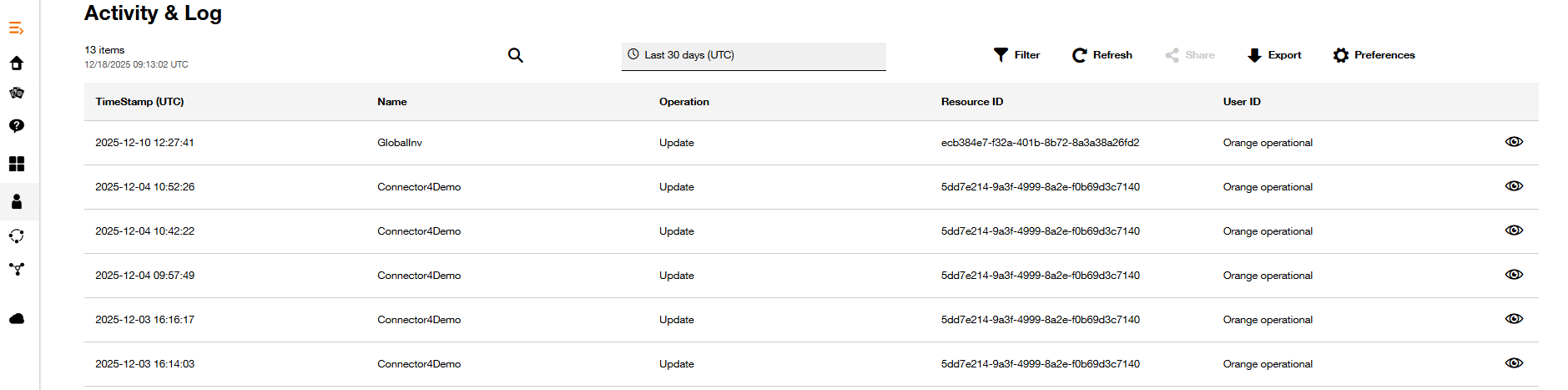
The toolbar at the top of the screen provides quick access to essential tools for managing and analyzing logs.
| Tool/Buttons | Description |
|---|
| Date picker | Allows you to filter logs by a specific time period |
| Filters | Open the filter panel to refine your search using service, operation, and user type |
| Preferences | Open the preferences panel to customize which columns are displayed in the log table |
| Export | Exports the current log view (filtered or unfiltered) to a file (CSV) |
| Refresh | Reloads the log table with the latest data |
| Option | Description |
|---|
| Last 1 hour | Logs from the last hour |
| Last 6 hours | Logs from the last 6 hours |
| Last 24 hours | Logs from the last 24 hours |
| Last 7 days | Logs from the last 7 days |
| Last 30 days | Logs from the last 30 days |
- Click on Apply to select the Time period
| Button Name | Description |
|---|
| Cancel | Close the filter panel without applying |
| Apply | Apply the time period selected |
| Field | Description |
|---|
| Select service | Filter logs by service |
| Select operation | Filter logs by operation type( ex : Create, Delete…) |
| Select user type | Filter logs by user type( Orange operational, Other) |
| Button Name | Description |
|---|
| Cancel | Close the filter panel without applying |
| Clear Filter | Reset all filter fields |
| Show all results | Display all logs, applying the filter |
- Open the preferences panel to customize which columns are displayed in the log table
| Column Name | Description |
|---|
| TimeStamp (UTC) | Date and time of the action (in UTC) |
| Name | Name of the resource or action |
| Operation | Type of operation performed |
| Resource ID | Unique identifier of the resource |
| User ID | Identifier of the user who performed the action |
| Transaction ID | Identifier of the operation |
| Service | Service Concerned by the operation |
| Vendor | Corresponding Vendor/partner of the service |
| Project | Project of the resource concerned by the operation |
| Change Properties | Property changed by the operation |
| Old Value | Initial Value of the property changed |
| New Value | New Value Of the property changed by the operation |
| Button Name | Description |
|---|
| Save | Save your column preferences |
| Cancel | Close the preferences panel |
The main table displays the list of activity logs with the following default columns in the selected period of time:
| TimeStamp (UTC) | Name | Operation | Resource ID | User ID |
|---|
| 2025-06-13 09:15:00 | CC123 | Update | 00123 | admin01 |
| 2025-06-13 08:45:12 | VNE123 | Create | 00456 | user02 |
| 2025-06-12 17:30:05 | CC345 | Delete | 00789 | admin02 |
The table columns can be customized thanks to the Preferences panel.
- Click the icon (eye icon) on the right side of a log entry to open the log details panel.

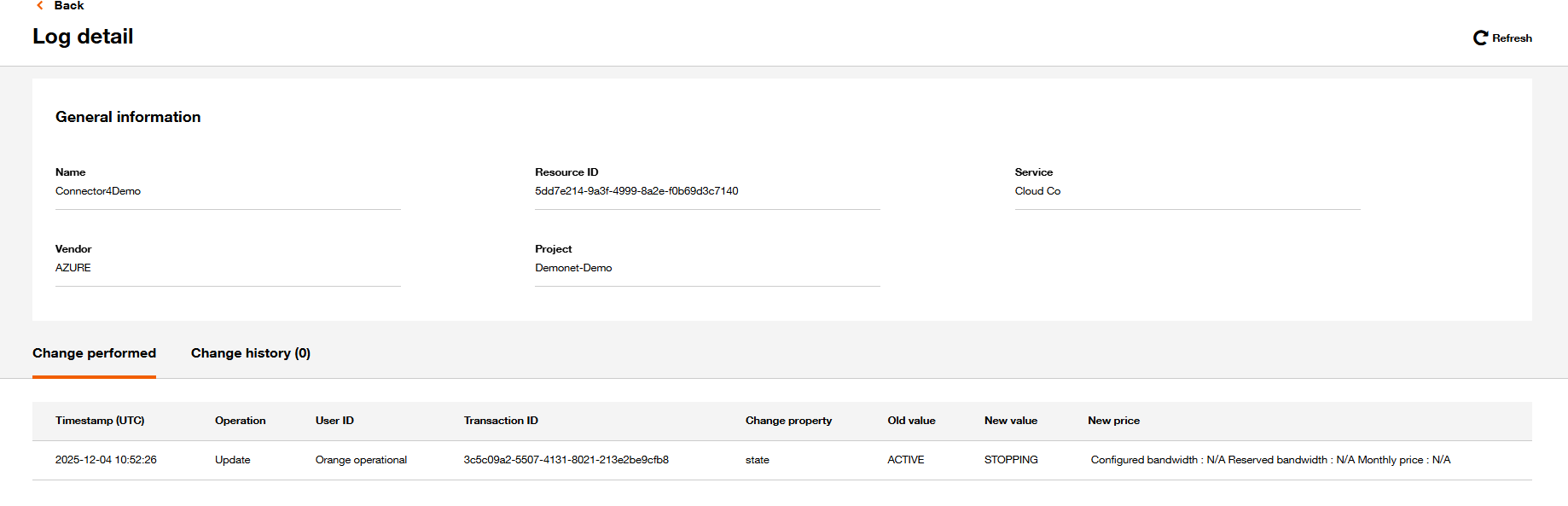
- It displays all fields of a defined log with
| Field | Example Value |
|---|
| Name | Product123 |
| Resource ID | 00123 |
| Service | Cloud Connectivity |
| Vendor | AWS |
| Project | Cloudproject |
| Field | Example Value |
|---|
| Timestamp (UTC) | 2025-06-13 09:15:00 |
| Operation | Update |
| User ID | admin01 |
| Transaction ID | 20240613-0001 |
| Change property | state |
| Old value | DESIGNED |
| New value | ACTIVE |
| New price | $100 |
- Additional field is the New Price displaying :the price components of the operations, (if applicable to the operation).
- For a creation, it indicates the price of the resource instantiated.
- For an update, it indicates the new price of the resources changed
Change History tab
The Change History section shows the history of changes for the selected resource over the last 7 days.There are two parts: Create history and Update history.The fields in change history are the same as in Change Performed.
All dates and times displayed in the Activity & Logs section, including log entries, details, and change history, are shown in Coordinated Universal Time (UTC).
- Select a period using the Date picker in the toolbar.
- Click Filters in the toolbar to open the filter panel and refine your search using Select service, Select operation, and Select user type.
- Click Show all results to filter the logs, or Clear Filter to reset.
- Use the Preferences button in the toolbar to choose which columns are displayed in the log table.
- Click the Eyes icon to view details for a specific log entry, including general information, change performed, and change history.
- Use Export to download the current view.
- Use Refresh to update the table with the latest data.
- Regularly review logs for critical actions and changes.
- Use filters and period selection to quickly find relevant events.
- Customize your view with preferences for more efficient analysis.
- Export logs for compliance, audits, or backup.
- Always consider the UTC time format when analyzing logs.
| Issue | Solution |
|---|
| Logs or change history missing | Check your period and filter settings |
| Filters not working | Use Clear Filter to reset all filters |
| Data not up to date | Use Refresh to ensure you are viewing latest data |