Private Cloud Connectivity - Add new connectivity
In this guide, we will walk you through the steps to provision or designed an Cloud Avenue cloud connector. Let's get started!
1. Add new connectivity
From the inventory, in the upper right, click on the "Add new connectivity" button.
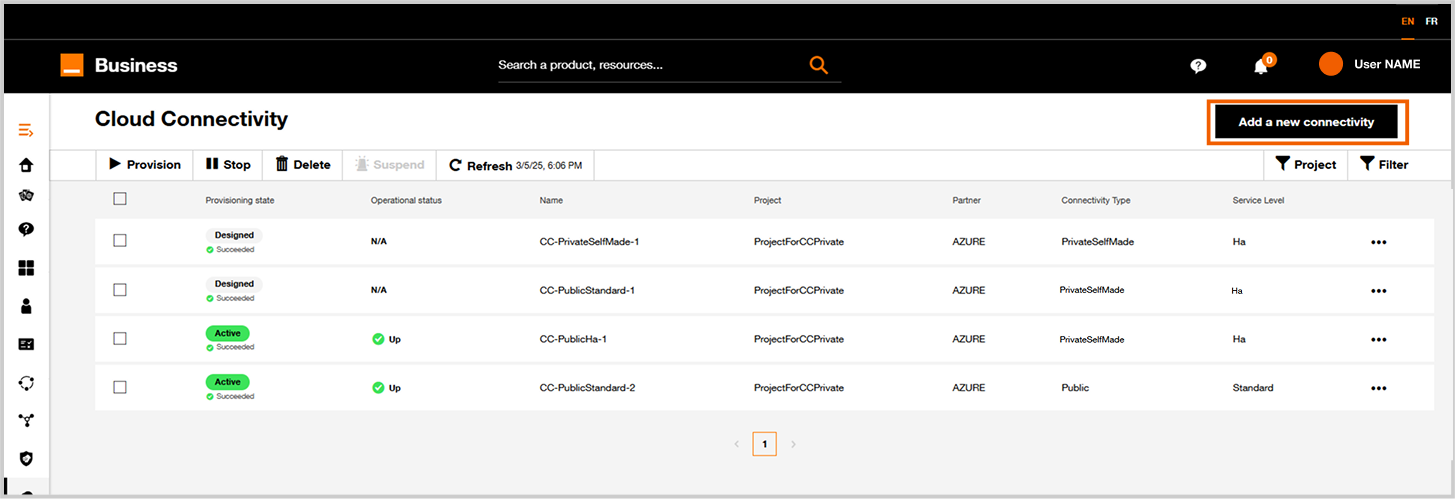
New connectivity.
2. Choose you service provider
For this exemple, click on "Subscribe" link in Cloud Avenue tile.
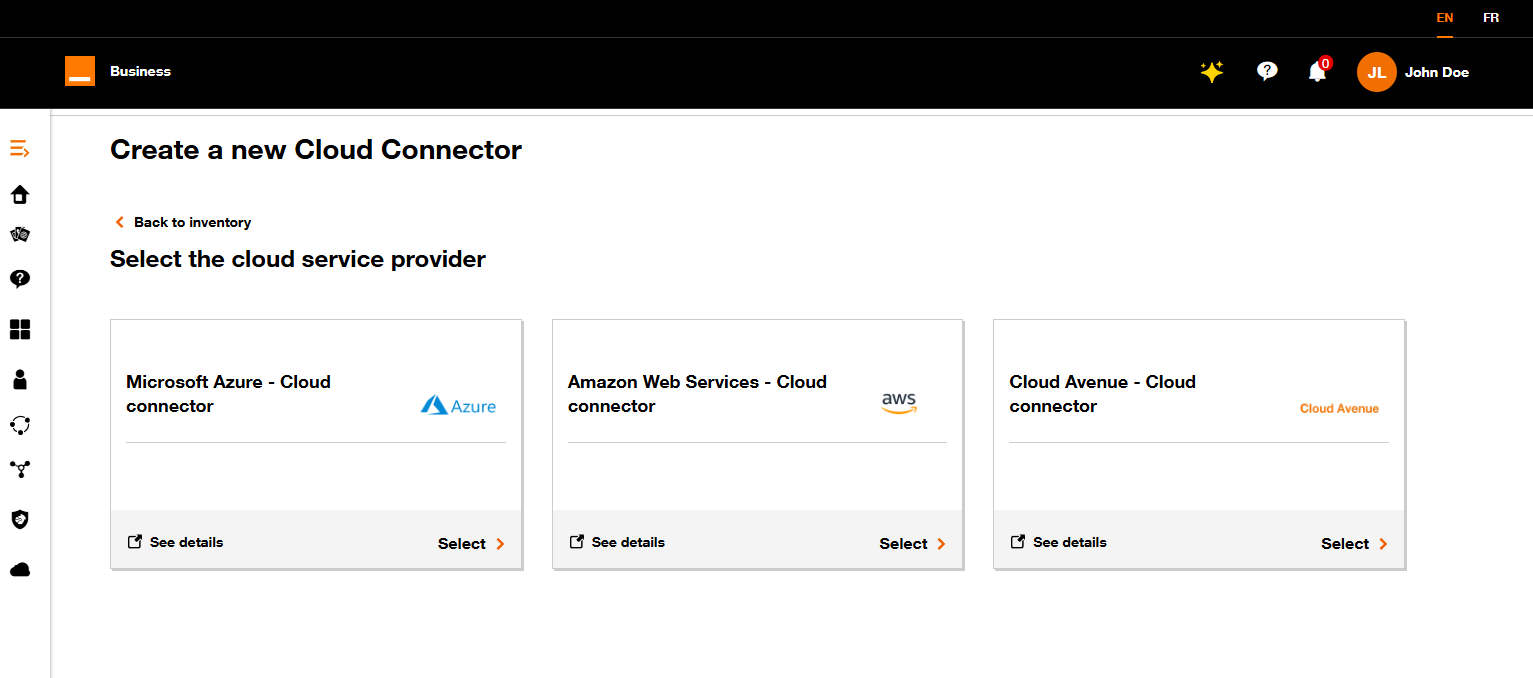
Service provider.
3. Select your project
Select an existing project for a cloud connectors hosting the Cloud connector.
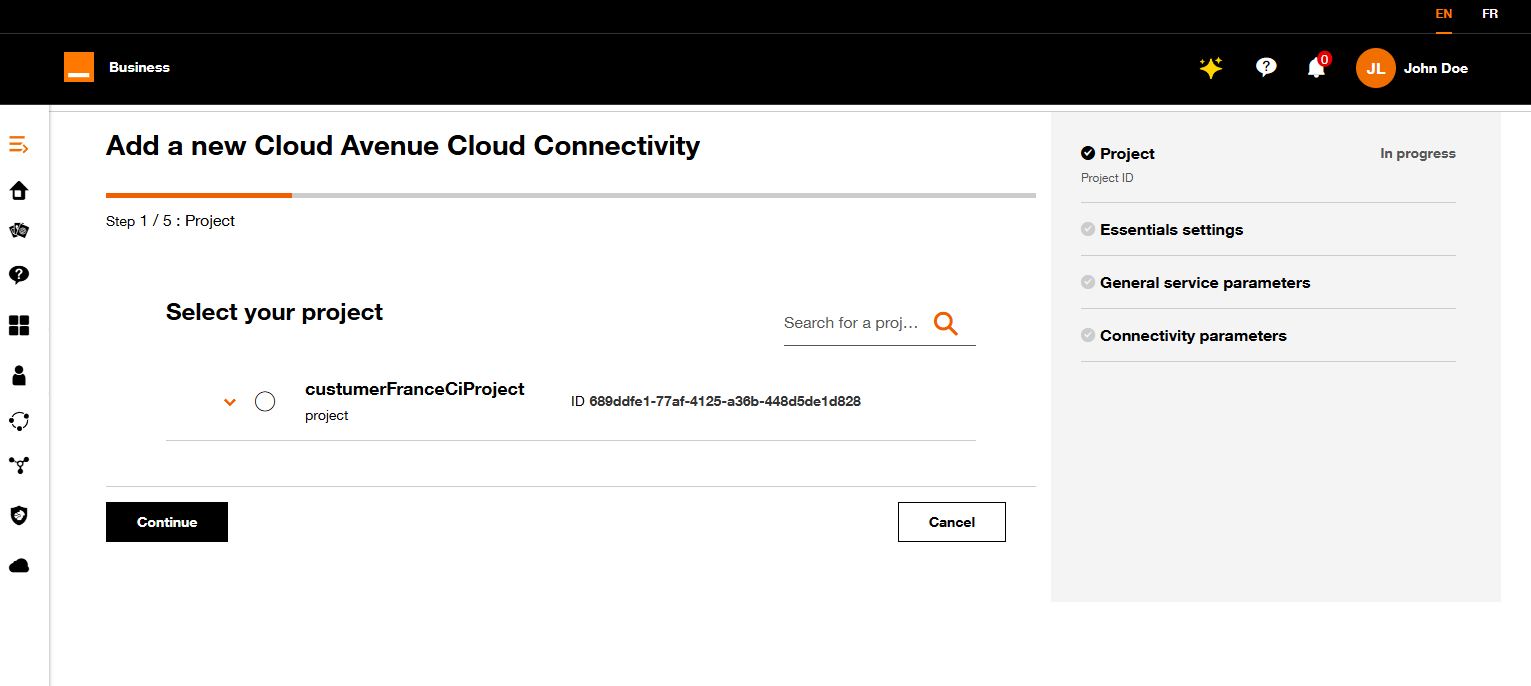
Projects.
4. Fill in the first Settings Form
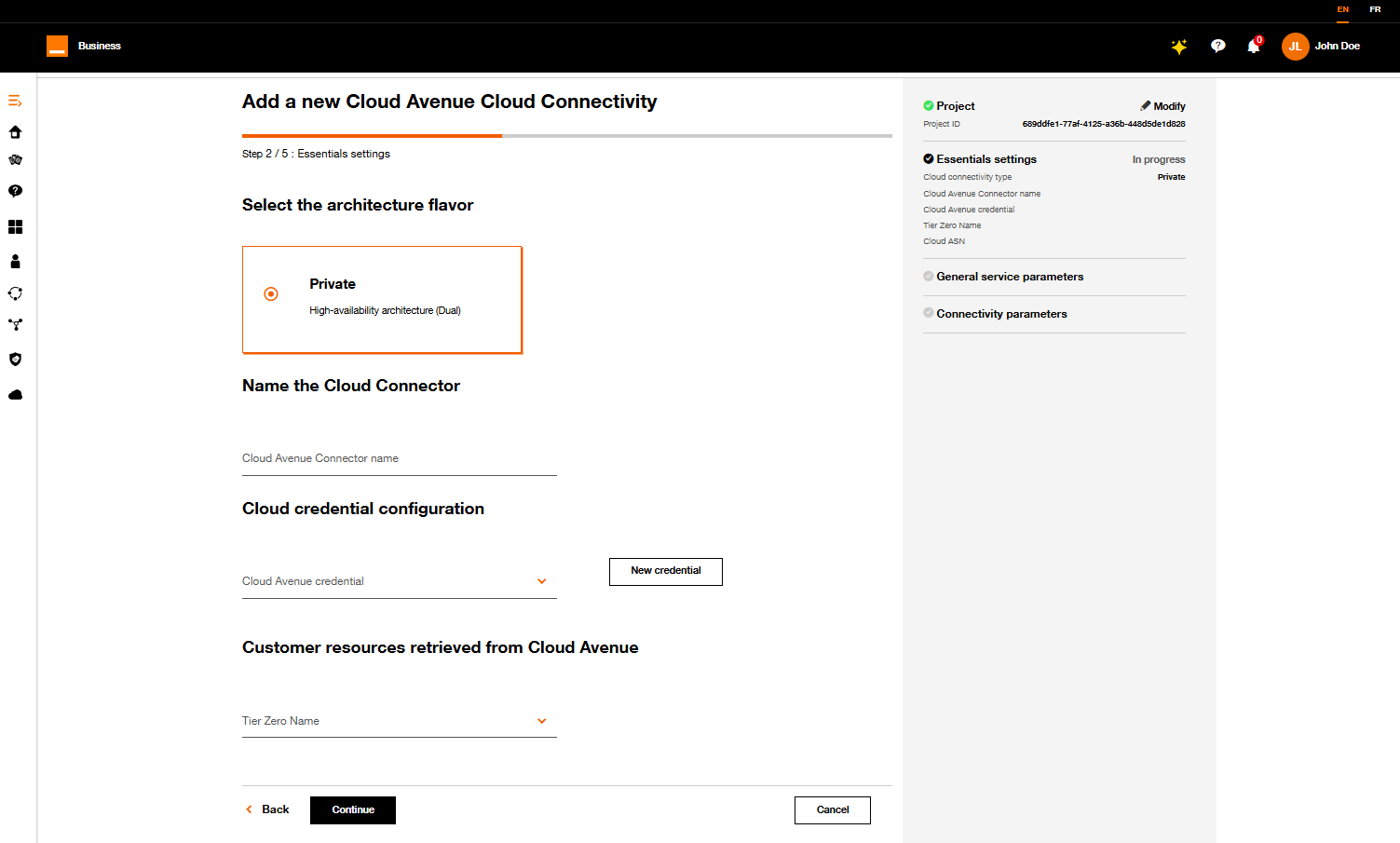
First settings form.
| Parameter | Description |
|---|---|
| Flavor | Choose Private tile |
| Cloud Connector Name | Define a name for your new Cloud Connector. |
| Cloud credential configuration | Select or create a Cloud Avenue set of credentials. |
| Tier Zero Name | Select the targetted Tier Zero retrieved from cloud Avenue with you set of credentials. |
Click on Next button.
5. Cloud configuration
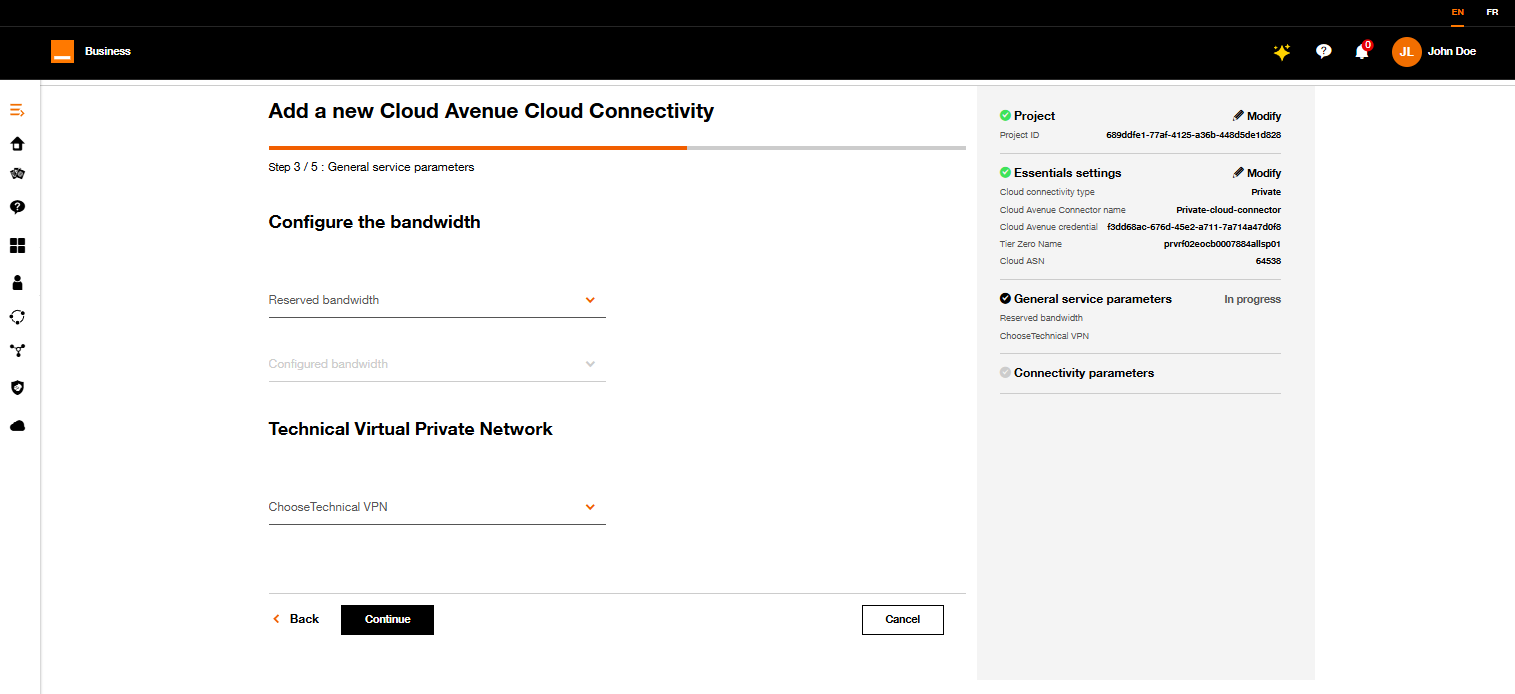
Cloud configuration.
Apply the following process:
- Select your reserved and configured bandwidth
- Choose your Technical Virtual Private Network
Click on Next button.
6. Connectivity parameters
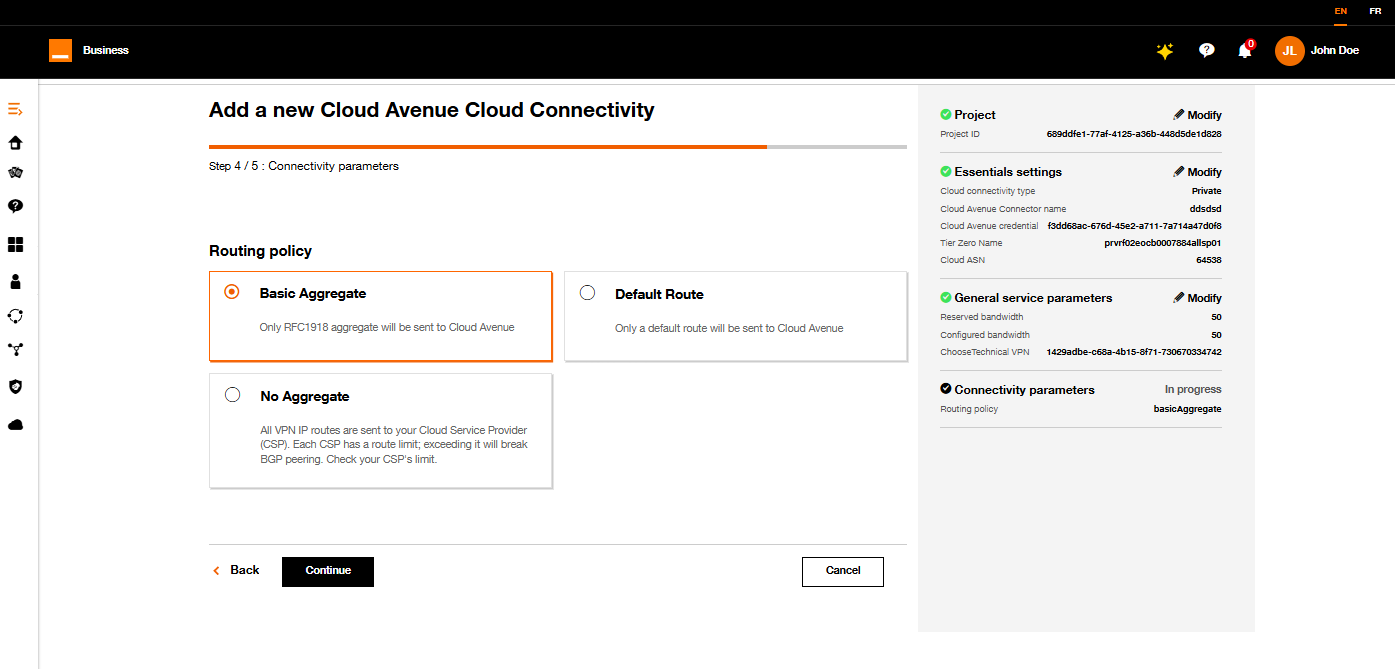
Create connector form step 4.
Choose the routing policy
| Routing policy | Description |
|---|---|
| Basic aggregate | only RFC1918 aggregate will be sent to Cloud Avenue. |
| Default route | Only a default route will be sent to Cloud Avenue. |
| No aggregate | All your VPN IP routes will be sent to AWS (Could cause a routing table overflow) |
7. Summary and pricing
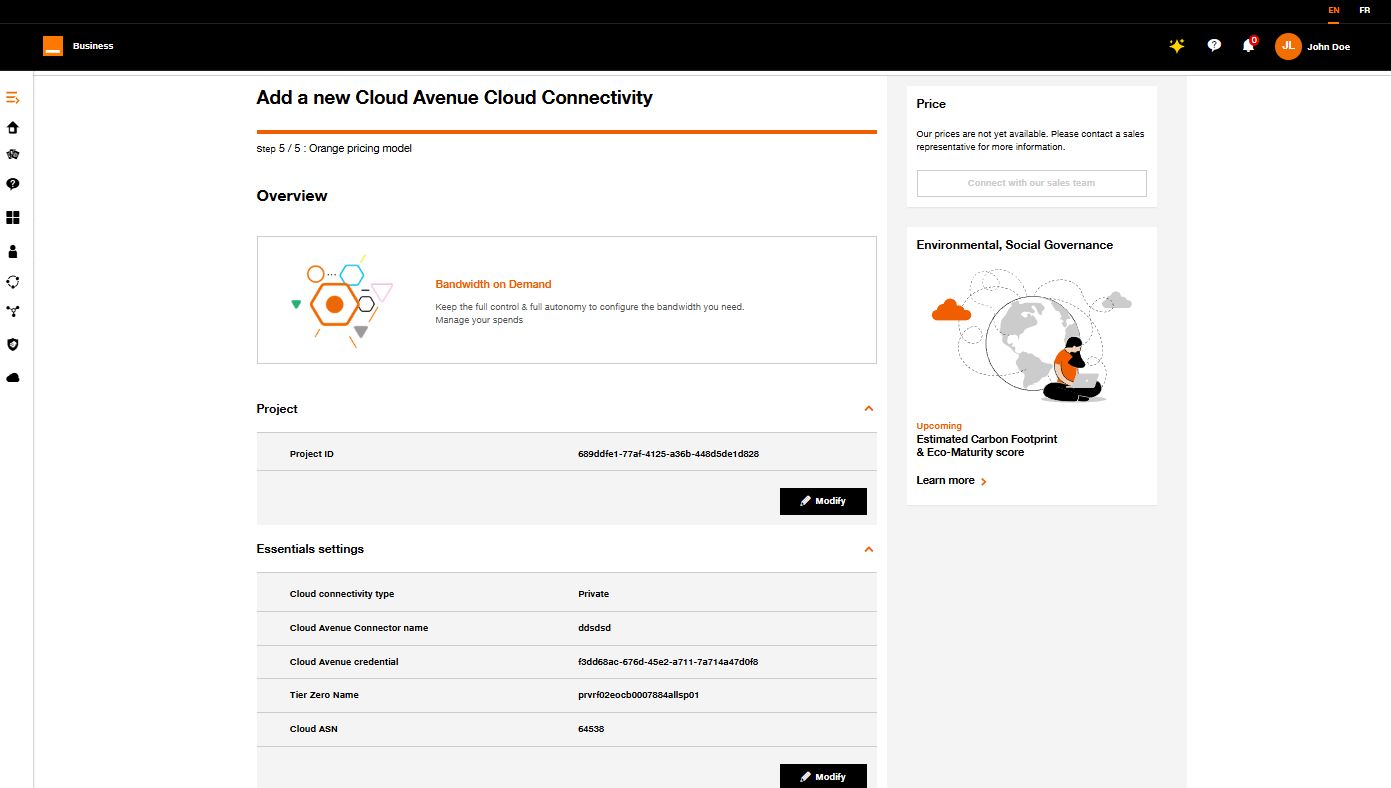
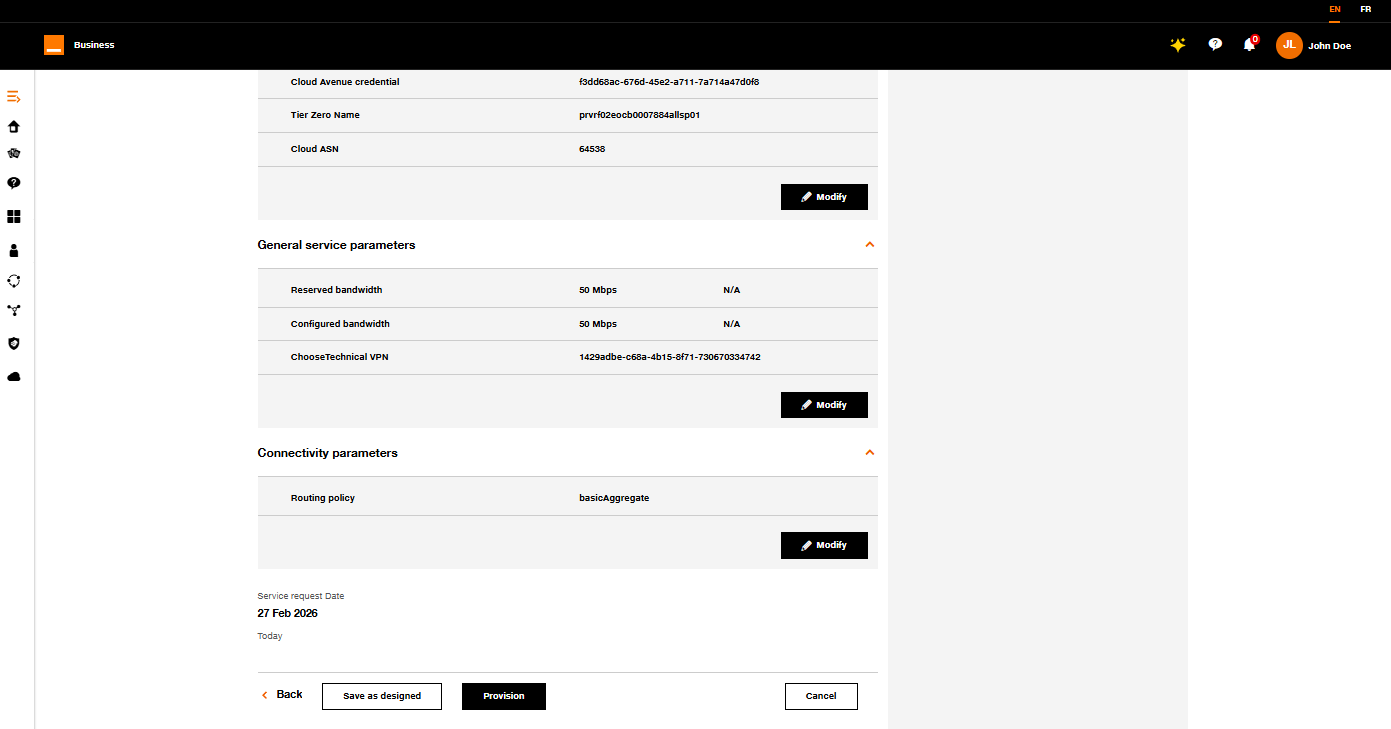
Update connector form step 5.
- On this screen you have on the right a summary of the cloud connector configuration.
- Soon you will have an estimated pricing for this configured cloud connector.
8. Provision or Save as “Designed”
Click on Save as designed if you want to save your new configuration.
When clicking on Provision, a screen will appear, indicating the cloud connector is being provisioned.
You will be able to provision last the cloud connector from Cloud Connector Inventory. See Provision.
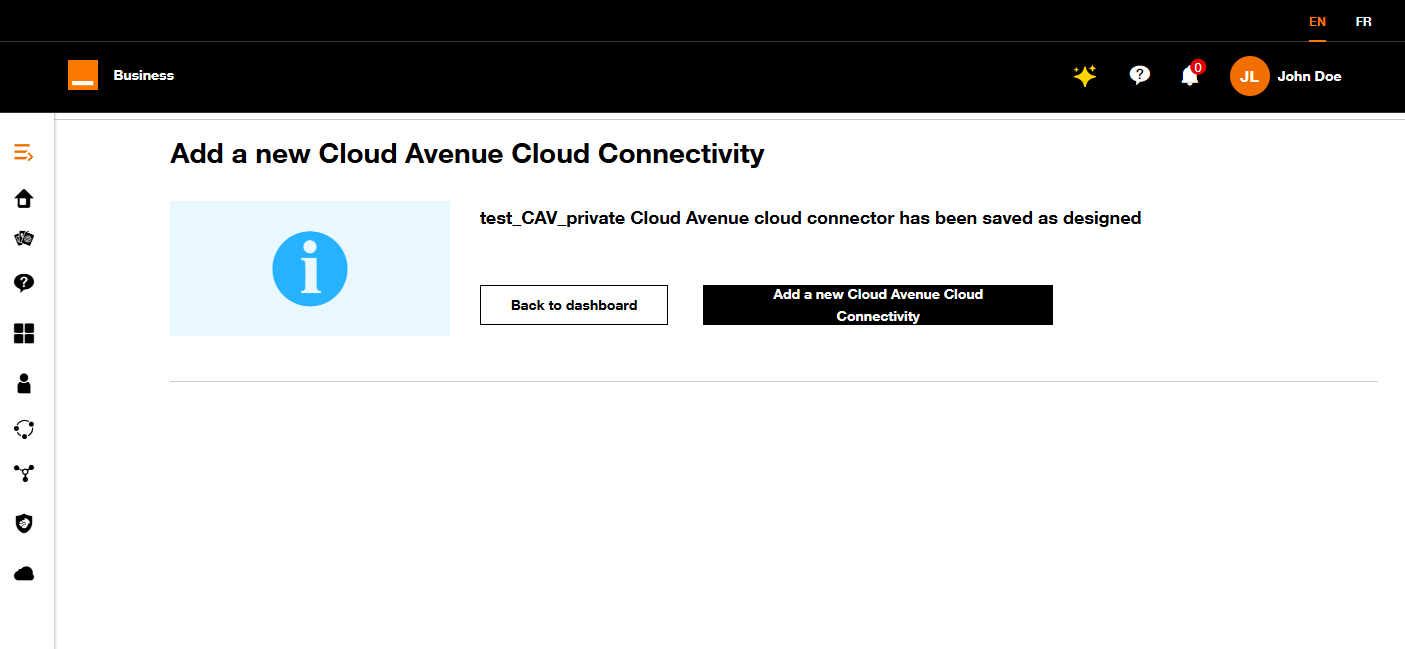
Confirmation de la modification.
If you click on Back to the dashboard, you can see your new cloud connector in the inventory.
Refer to Workflow Execution section.
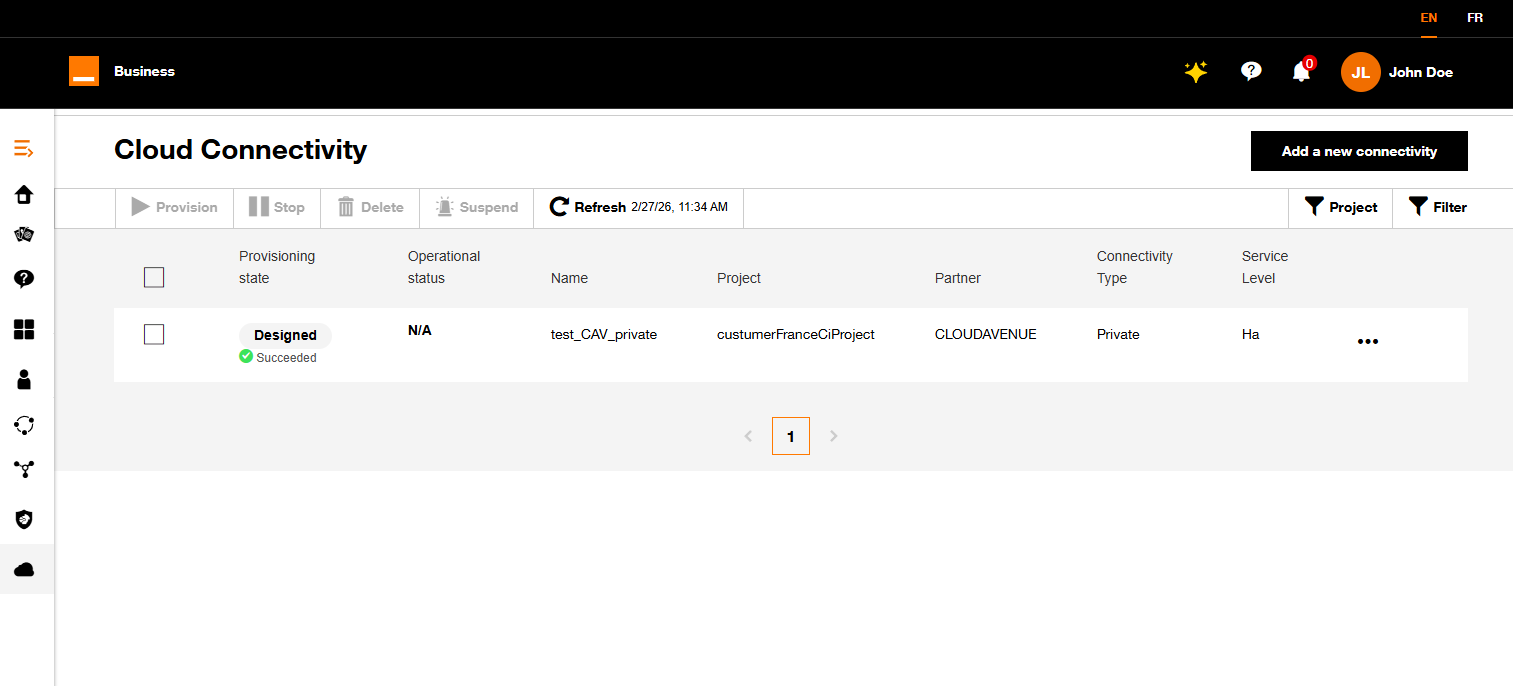
Inventaire des connecteurs cloud.